Protoarc T1 Plus review
The trackpad that cured me
Protoarc T1 Plus on Amazon (affiliate): https://amzn.to/3WDVrBj
Intro
One day. That’s all it took me to feel the benefits of making one change to the way I use my PC. Having suffered for years with a variety of repetitive strain injuries related to spending all day working at a computer, using a keyboard and mouse, I thought I’d tried every option to relieve the symptoms. Ergonomic mice, vertical mice, trackballs, extra input dial thingies, and even this mad looking joystick mouse thing called the Penguin. And that’s just for my right hand specific issues. When it comes to sore fingers on both hands from typing all day I’ve also experimented with all sorts of different keyboards, from ergonomic layouts and low profile keys to ultra clicky mechanical keys, and everything in between. I’ve even tried using voice input to dictate my writing rather than having to type, but that didn’t work for me either.
However, the one thing I’d never tried, was a trackpad. Yup, it really is as simple as that. Despite all the many years of using trackpads on laptops, I’d never tried one with my desktop. What a fool I was.
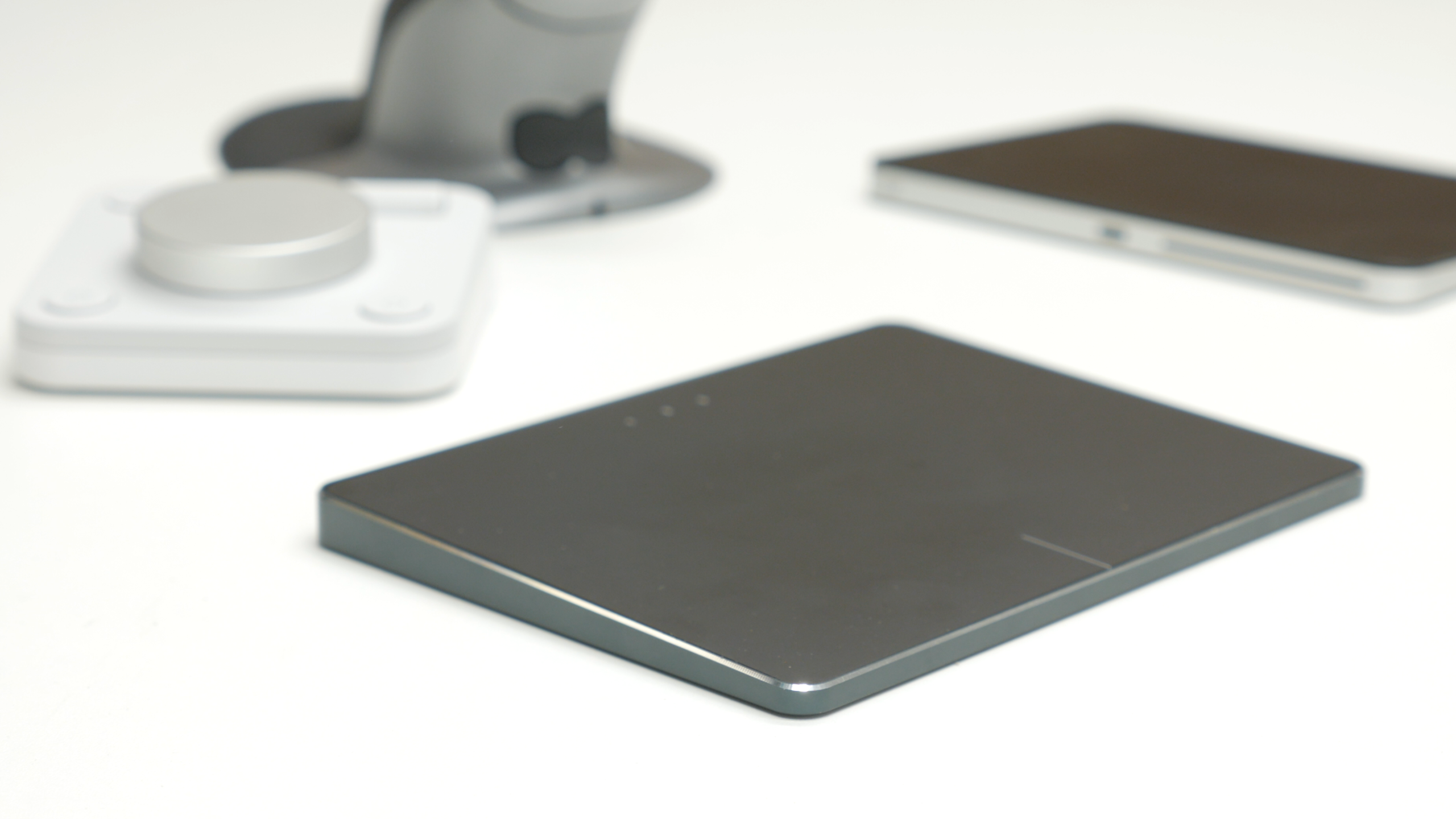
Now, the thing is, I didn’t even set out to find the ultimate RSI reducing input device with this thing. In fact, I just got an email from Protoarc one day saying they’d launched a new trackpad, so I asked for one to review.
But, from the moment I started using this, I could tell it would change how I use my PC forever.
Features and performance
So, what is this thing exactly? Well, it’s the Protoarc T1 Plus. Available for around $60 or £60 here in the UK, it’s a 16cm x 12cm low profile multi touch gesture supporting trackpad that you can connect to your PC either via its Usb-C port or over Bluetooth.
And that’s kind of it. It’s a trackpad. It does all the usual trackpad stuff. You can move the cursor around with one finger, scroll up and down and left and right with two fingers, and bring up the Windows multi window view, show the desktop, or scroll between open programs with a three finger gesture. It also supports both touch response where just a light tap of the surface is required to get a mouse click response or you can more firmly press the surface of the trackpad down to activate a switch underneath the top for an audible and tactile click response. It also has dedicated left click and right click zones as well as supporting the standard two finger right click gesture. Tapping with three fingers also brings up the Windows search while a four finger tap brings up the Windows notifications list.
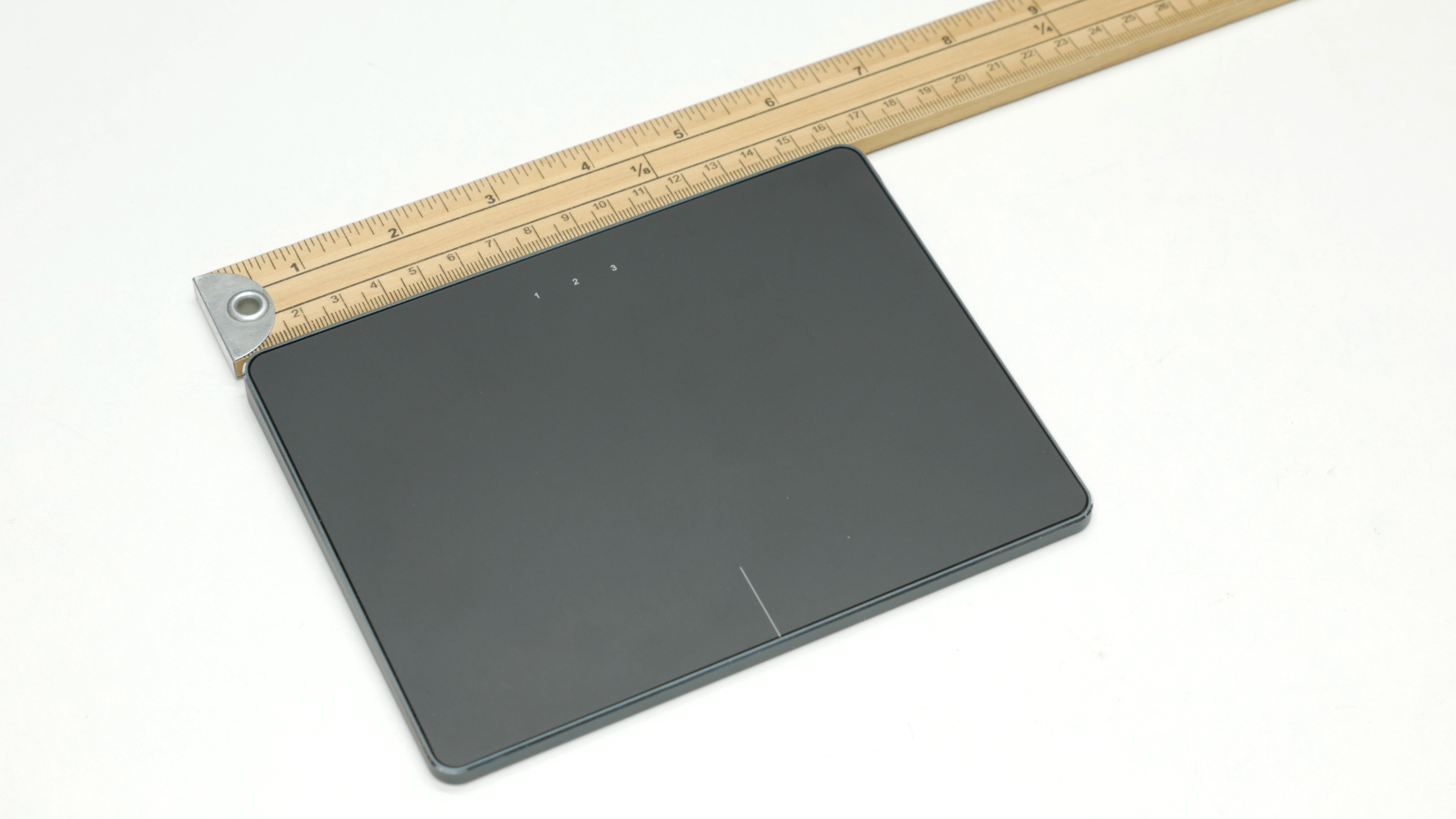
You can connect to three devices, with a button on the back cycling between them, and three backlit numbers on the front show which is currently active.
Also on the back is the on/off switch and a little panel that allows for the bluetooth signal to escape from between the otherwise fully aluminium case. In terms of what’s in the box, it doesn’t come with a USB dongle or anything, as it just relies on your PC’s existing Bluetooth connection, but you do get a USB cable. I believe there are supposed to be grey and white versions available, but it’s only the black version that seems to be stocked anywhere.
So far, so unremarkable, then. But there are three reasons why this thing has transformed both how I use my PC and how comfortable I am while doing so.
Now, the first is perhaps the most obvious one, which is that it just uses a different set of movements and actions to using a mouse, reducing the repetitive strain of those mouse movements.
So, for instance, with a mouse you have to slightly grip the sides, which I find can aggravates this area at the base of my thumb. Then, hitting the left click button or using the scroll wheel aggravates the trigger finger symptoms I get with my index finger.
By switching to a trackpad, though, both of these a totally eliminated. For at start, I naturally use my middle finger for cursor movement, as its my longest finger and then I use my middle and ring fingers for scrolling and other two finger gestures and these three fingers for three finger interactions. This completely saves my index finger from doing any work. Meanwhile, because there’s nothing to grip, I don’t have to make that gripping action with my thumb, but instead I can just leave it hanging lose to the side. I guess, technially I do have to hold it up so it doesn’t touch the trackpad, but I don’t find this triggers any of my issues.
The second reason this works so well is that the T1 Plus has fantastic inertial scrolling. Flick the surface up or down with two fingers and you get a really natural-feeling scroll action that can both scroll through webpages and documents or scrub through a video editor’s timeline nice and quickly while also allowing for reasonably fine control as well. In comparison, many alternative ergonomic options, such as vertical mice or this Kensington trackball have either a conventional scroll wheel or a wheel that doesn’t provide a particularly fast response, making day to day interactions feel markedly slower or more triggering to RSI as you again have to do lots of repeated actions to get the same resuly. Mice with weighted scroll wheels, like the Logitech MX Master 4, can be even faster and more accurate, but for some reason I still find the two finger trackpad scrolling motion more comfortable.
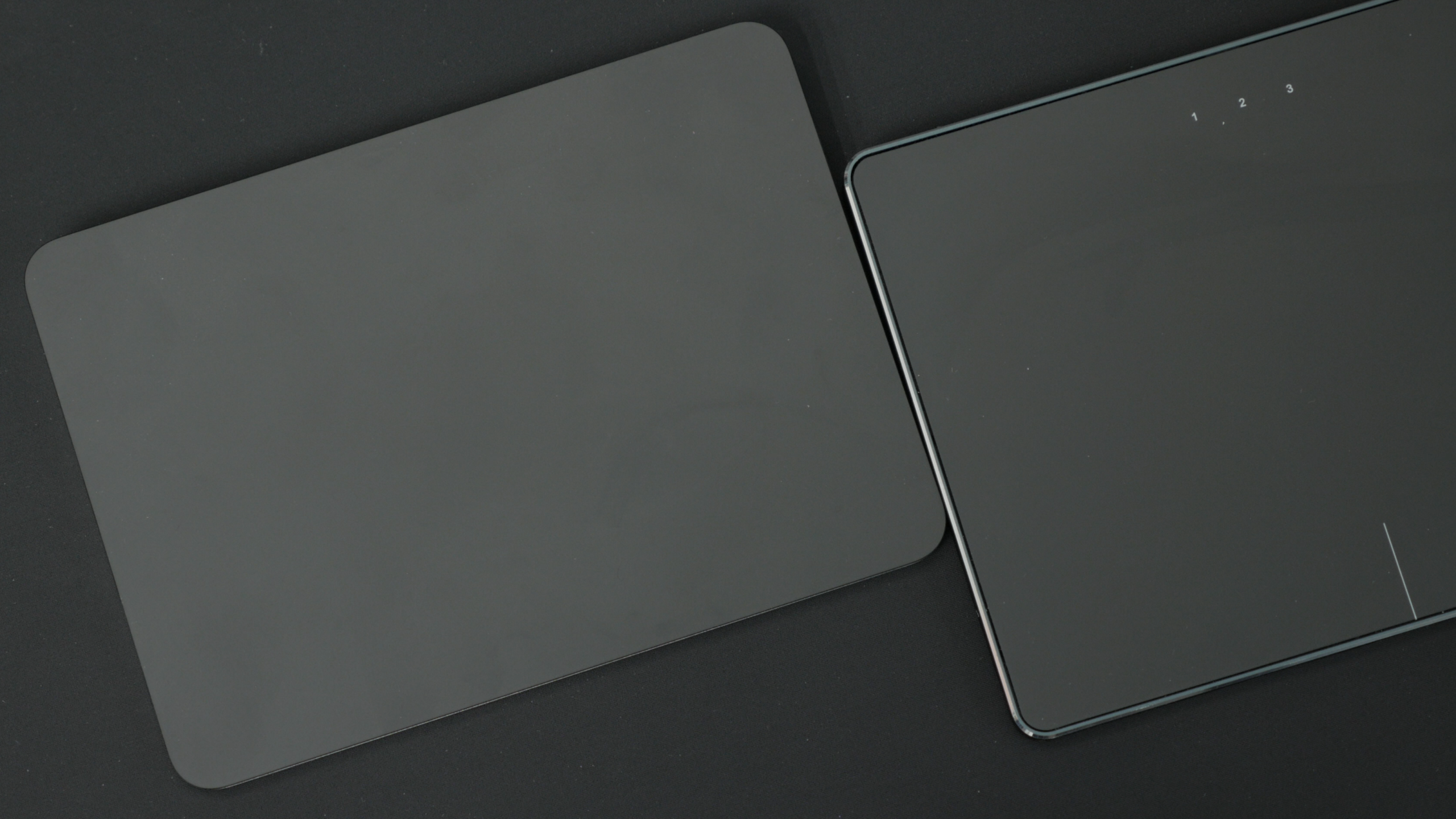
Now, the final crucial way in which this has outshone any other ergonomic gear I’ve tried is speed and accuracy. The cursor tracking and acceleration on this surface is tuned just right, making it easy to quickly move the cursor long distances while still maintaining accuracy when moving more slowly, allowing me to quickly navigate to a spot then precisely hit an icon or pinpoint a letter. In comparison, these vertical mice I find very cumbersome and difficult to use quickly and accurately. Likewise, trackballs I found would too often make me want to just resort to my mouse to get stuff done quickly.
Now, to be clear, I still use a mice alongside this trackpad all the time, but I generally only find I use it much when editing videos and images where the speed with which you can accurately pick a cut point or trace an edge is still so much higher with a mouse. Plus of course I use a mouse for gaming.
So, having mostly been very impressed with this thing, I did identify a couple of areas where it could be improved. The first is that the top surface is aluminium rather than the etched glass of some premium trackpads. This means it isn’t quite as friction free. If your hands are slightly moist or not clean, they can cling to the surface that little bit more readily than with glass trackpads. The other factor is the click. This uses a conventional trackpad design where it effectively hinges at the back edge so can’t by physically clicked here, with only the front edge able to be pressed to active its click. This mostly isn’t a problam, particularly as I generally use just the touch based interactions, rather than pressing the surface down. However, if you do prefer to use the click, you can sometimes find you try to press the pad too far so it doesn’t respond very well. Plus, even if you press at the bottom edge, it still requires quite a firm press.
Protoarc T1 Plus vs Apple Magic Trackpad
Given these factors, I thought it would only make sense to compare this trackpad to arguably the most famouse trackpad of them all, the Apple Magic trackpad. So, I grabbed myself one.
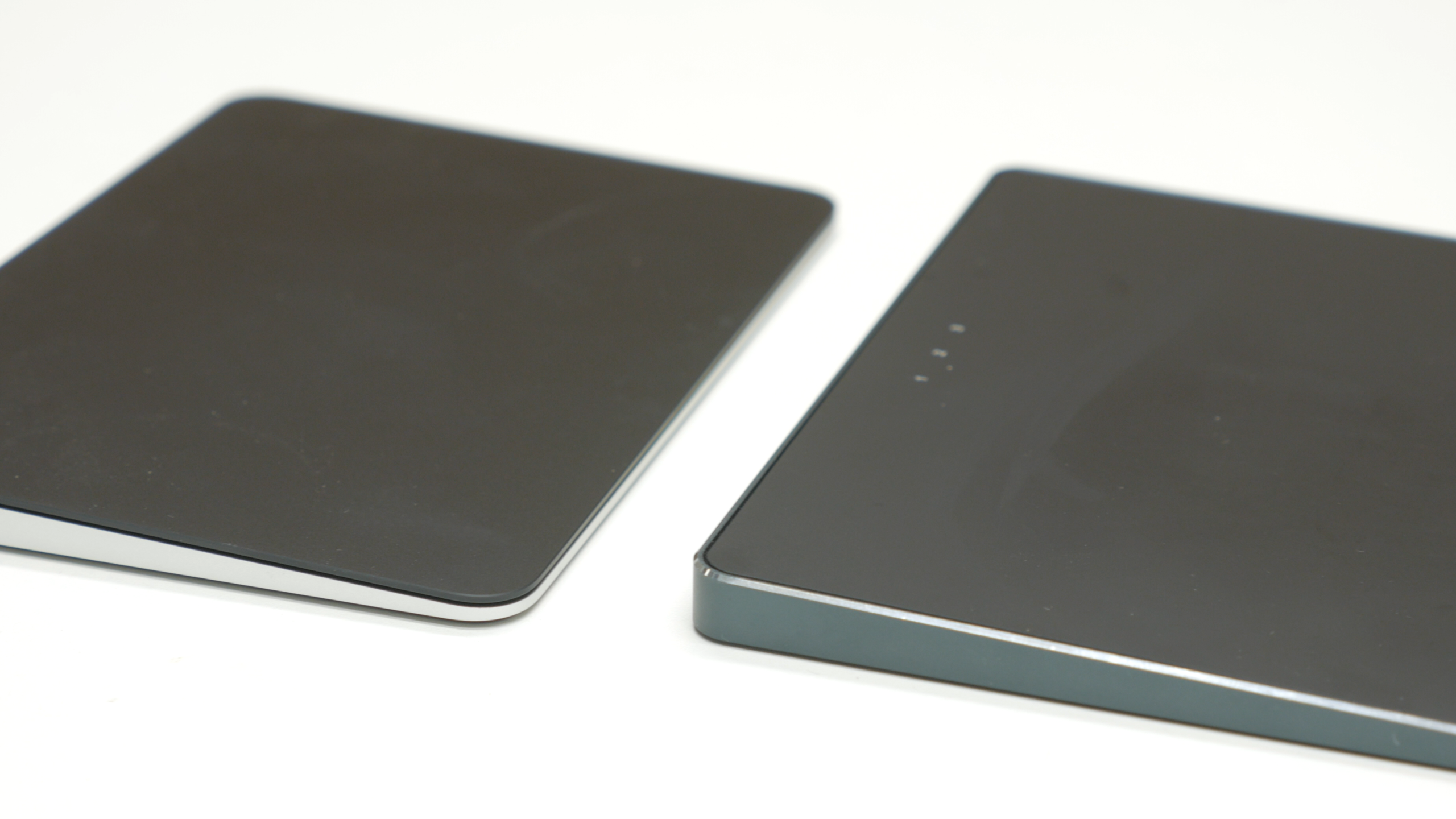
Side by side, the Magic trackpad is so much smarter looking and it feels like a much better built unit too. Its weighier, has that etched glass top surface and doesn’t have whatever this rattle is.
Sure enough, that glass surface feels a lot better too. Its so smooth and easy gliding. The click response is much nicer too. It uses haptic feedback, so the pad surface doesn’t actually move but instead a little actuator inside makes a click-like movement. It feels brilliant responds evenly across the whole surface of the pad.
However, at least for using it on Windows, which requires the use of this open source driver, some of the fine tuning of the pad’s responses weren’t actually as good as the T1 Plus. For a start, the haptic click response, even with it set to its highest resistance setting I still found would constantly activate accidentally when I was just trying to move the cursor or scroll. Also, while it has slightly superior small movement response, thanks in part to a faster update rate that gives the cursor a slightly smoother motion, the cursor acceleration wasn’t as good. Trying to move large distances felt tedious. Similarly, the intertial scrolling just doesn’t work anywhere near as well. So, despite the better build and surface feel, this Magic Trackpad is going back on ebay and I’m sticking with the T1 Plus.
It hasn’t completely fixed all my RSI, as typing still aggravates both my hands and I still use a mouse for some things, but the extent to which using this trackpad has relieved the ever worsening trigger finger like symptoms I was getting in my index finger and the soreness I was feeling in the base of my thumb has been a life saver.
Verdict
As such, I cannot recommend this thing highly enough. I’d love to see a version with an etched glass top, and perhaps even with the haptic click of the Magic Trackpad, but for $60 it’s very reasonably priced and if you suffer from any of the sort of symptoms I’ve discussed it could make all the difference to you too. Just keep in mind that I’m not a medical doctor, so you should seek medical advice elsewhere if you’re experiencing any serious symptoms.
So that’s been my experience, but what about you? Have you ever used a trackpad for desktop input? If so, did it help with any of your RSI issues, or did you just find it easier to use? Or, did you not like the experience at all. I’d love to hear your thoughts in the comments, and feel free to subscribe while you’re down there too.
Protoarc T1 Plus on Amazon (affiliate): https://amzn.to/3WDVrBj
Related Posts


About The Author
